









Feature Wiki
Tabs
Adaptive Learning Paths: Input Conditions
Page Overview
[Hide]- 1 Initial Problem
- 2 Conceptual Summary
- 3 User Interface Modifications
- 4 Additional Information
- 4.1 Involved Authorities
- 4.2 Technical Aspects
- 4.3 Privacy
- 4.4 Security
- 4.5 Contact
- 4.6 Funding
- 5 Discussion
- 6 Implementation
- 6.1 Description and Screenshots
- 6.2 Test Cases
- 6.3 Privacy
- 6.4 Approval
1 Initial Problem
An adaptive Learning Sequence must be able to decide whether an object may be entered by a learner. Without Input Conditions, every object would either be reachable linearly or would have to be controlled outside the Learning Sequence. This prevents flexible learning paths with branches, prerequisites, point thresholds or logical combinations.
2 Conceptual Summary
Input Conditions define which prerequisites must be fulfilled before an object may be entered. They are created on the target object. During navigation, the Learning Sequence checks whether the conditions for this target object are fulfilled.
The implemented Input Conditions are:
- Learning Progress Input: Checks the learning progress of another selected object. Supported variants are Not Attempted, In Progress, Completed and Failed.
- Points Input: Checks whether at least a configured score has been reached through selected source objects. The source objects must provide matching Points Output Conditions.
- Subset Input: Checks whether at least a configured number from a selected set of source objects has been completed. This condition evaluates LP Completed on the selected source objects.
- Logic Gate Input: Logically combines several referenced conditions or objects. AND, OR and NOT are supported. When source objects are evaluated, this is based on LP Completed.
Input Conditions not only control the release of an object, but also shape adaptive navigation. Some conditions form direct edges between objects, while others describe dependencies on several sources.
3 User Interface Modifications
3.1 List of Affected Views
- Learning Sequence > Content > Manage
- Condition drilldown for adding input conditions
- Misconfiguration badges and popovers
- Player navigation in Adaptive Mode
3.2 User Interface Details
Input Conditions are created in adaptive content management through the action "Conditions" of an object. The condition belongs to the object that is to be entered.
When adding a condition, a drilldown with the available Input Conditions opens. Conditions with subtypes, such as Learning Progress or Logic Gate, show their variants as subentries.



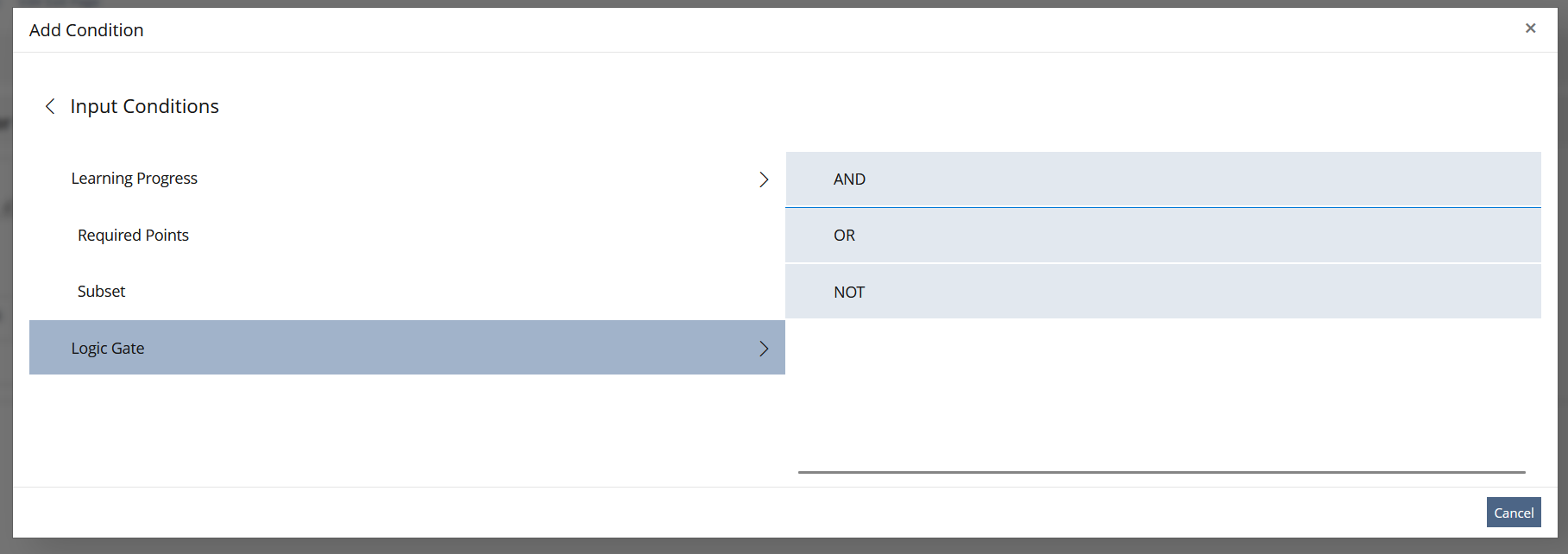
Many Input Conditions require configuration:
- Learning Progress Input: selection of the referenced object and selection of the learning progress status.
- Points Input: selection of one or more source objects and entry of the required score.
- Subset Input: selection of several source objects and entry of how many of them must be completed.
- Logic Gate Input: selection of the logical variant and the related sources.

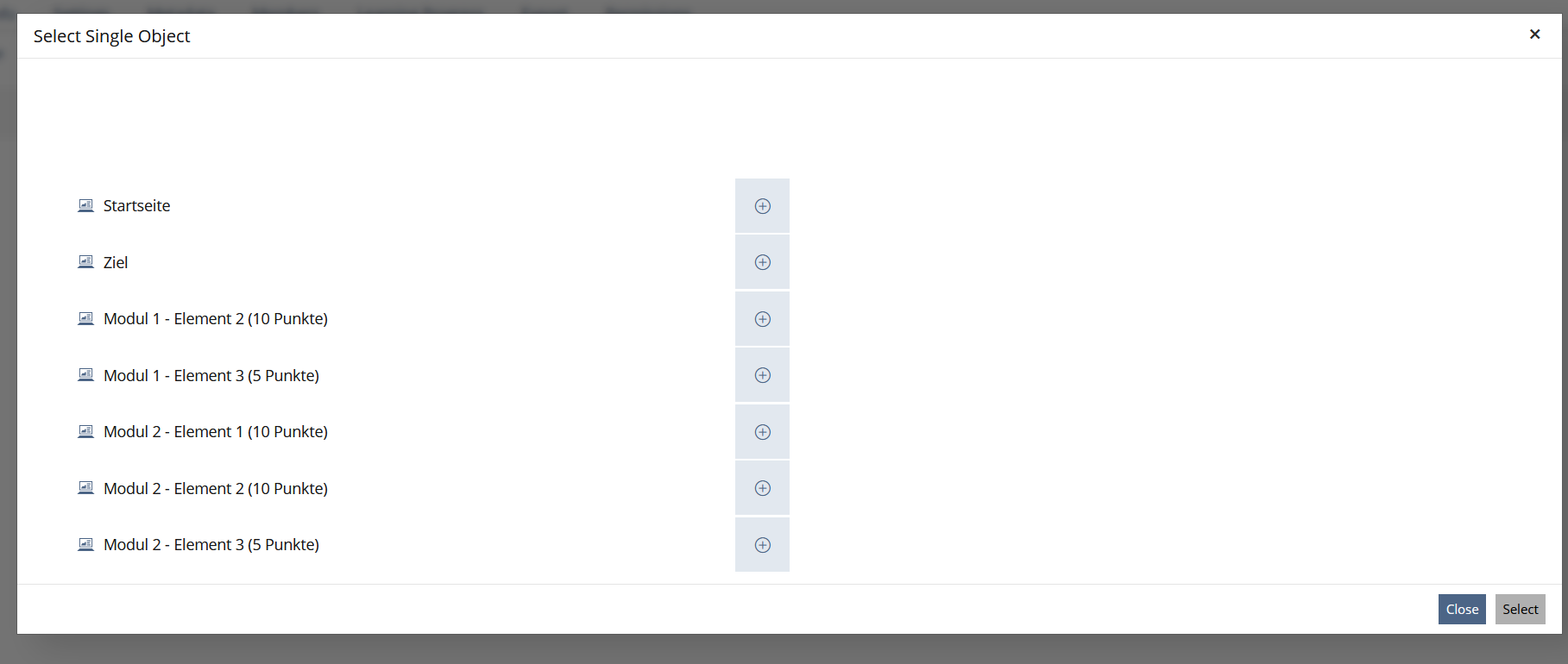
Adaptive content management displays misconfigurations with badges and popovers. This makes it visible when conditions point to deleted objects or objects no longer present in the Learning Sequence, or when a Points Input Condition lacks a matching Points Output Condition.

In addition to normal condition configuration, Input Conditions use additional quality information:
- static misconfiguration detection,
- badges on affected objects,
- popovers with detailed information,
- filters by Input Conditions.
This information helps check adaptive paths already in management before learners encounter blocked or unreachable paths in the Player.
3.3 New User Interface Concepts
No new UI concepts.
3.4 Accessibility Implications
The display must explain misconfigurations textually. Badges must not be the only source of information. Popover content should contain clear titles, descriptions and referenced object lists so that it is also understandable with assistive technologies.
4 Additional Information
4.1 Involved Authorities
- Authority to Sign off on Conceptual Changes: Großkopf, Katrin [katrin.grosskopf]
- Authority to Sign off Code Changes: Großkopf, Katrin [katrin.grosskopf], Auerbach, Jeanine [jeanine.auerbach], Clausen, Keven [keven.clausen]
4.2 Technical Aspects
Input Conditions are discovered automatically and registered in lso_condition_types. Each created condition receives an entry in lso_conditions; additional configuration data is stored in condition-specific tables.
Examples of condition-specific tables:
- Learning Progress Input: lso_c_learning_progress_input
- Points Input: lso_c_points_input and lso_c_points_input_items
- Subset Input: lso_c_subset and lso_c_subset_items
- Logic Gate Input: lso_c_logic_gate_input and lso_c_logic_gate_items
For adaptive navigation, certain Input Conditions implement a navigation-aware interface. It distinguishes, among other things:
- Edge: The condition describes a direct relationship to a referenced object.
- Dependency: The condition depends on several source objects or values.
- Global: Intended for global conditions if a condition cannot be reduced to concrete sources.
Static misconfiguration detection collects issues from the Input Conditions, merges details and marks affected objects in the table. It is especially important that a condition can mark not only its own object as faulty, but also referenced source objects if a required counterpart condition is missing there.
4.3 Privacy
Input Conditions can evaluate learning progress and derived values such as achieved points. No new categories of personal data are introduced.
4.4 Security
No special security-relevant changes. Referenced objects are checked through existing object and reference IDs; missing or invalid references are treated as misconfigurations.
4.5 Contact
Person to be contacted in case of questions about the feature or for funding offers: Auerbach, Jeanine [jeanine.auerbach]
4.6 Funding
Funding status and funding parties are listed in the block 'Status of Feature' in the right column of this page.
If you are interested to give funding for this feature, please get into contact with the person mentioned above as 'Contact'.
5 Discussion
Kunkel, Matthias [mkunkel], 28 SEP 2026: Thank you for this feature request. I have some questions:
- Chap. 2, Logic Gate Input: does "Logically combines several referenced conditions ..." mean e.g. that I combine points/score and completion status of one selected object? If I understand the combination of objects correctly, an input condition would be the completion of two or more selected objects (when using AND) or the completion of one of a group of objects (when using OR), right?
- Chap. 2: Wouldn't it be possible to go straight to the 3rd mockup when clicking on "Logic Gate" in the 1st mockup? This "underworld" screen inserted in between (2nd mockup) is ugly and irritating.
- Chap. 2, 3rd mockup: what happens when I click on the + of one of the presented objects? And why is "Select" not placed before "Close" (IMHO it is a "Save" action, right?)
- Chap. 2: Is there a screen that shows all input conditions that has been configured?
- Chap. 3.3: Unfortunately, I do not understand the text in this chapter. Are new UI elements needed to implement this FR? Or are you using existing ones from the Kitchen Sink?
Auerbach, Jeanine [jeanine.auerbach], 30 SEP 2026:
- It is based on LP completed. This means for example "Object A AND Object B" results in "Object A must have LP status complete AND Object B must have LP status complete". Hope that explains it better.
- I added some mockups. Can you please asked your question again with mentioning the right mockups, so we don't misunderstand each other?
- Clicking on + adds the object to the list and the + turns into a checkmark. We're using the KitchenSink element "Tree Multi Select" from Input > Field where the examples all have the button "Close" before "Select". Same with the label for the Select button.
- Yeah. The mockup where the "Add Condition" Button is highlighted there is a table underneath where all Input Conditions made for the specific object are shown.
- Thanks for the hint! We do not use new UI concepts, so I put that part in 3.2.
Kunkel, Matthias [mkunkel], 30 SEP 2026: Thanks for your feedback and the answers. I have added numbers to the screenshots to ease their identifcation
- ad question 2: I am talking about screenshot S6. Is this screen necessary? Wouldn't it be possible to trigger the tree to select objecs (screenshot S7) already when clicking on AND, OR or NOT in screenshot 5?
Auerbach, Jeanine [jeanine.auerbach], 02 OCT 2026: Even if it were possible, it wouldn't be a good idea; you shouldn't open one modal from within another. Furthermore, it would be inconsistent—both in terms of UX and programming—to sometimes open a configuration page and sometimes not. And besides, the first KS element—where you select "AND," for example—can only contain links or buttons.
JourFixe, ILIAS [jourfixe], 19 OCT 2026: We highly appreciate this suggestion and accept the feature for trunk.
6 Implementation
Feature has been implemented by {Please add related profile link of this person}
6.1 Description and Screenshots
{ Description of the final implementation and screenshots if possible. }
6.2 Test Cases
Test cases completed at {date} by {user}
- {Test case number linked to Testrail} : {test case title}
6.3 Privacy
Information in privacy.md of component: updated at {date} by {user} | no change required
6.4 Approval
Approved at 21 OCT 2026 by Vorkauf, Klaus [KlausVorkauf].
Last edited: 21. Oct 2026, 11:39, Vorkauf, Klaus [KlausVorkauf]