


Feature Wiki
Tabs
How to connect ILIAS and Moodle by LTI 1.3 (Moodle provider - ILIAS consumer)
1 Guideline
Moodle
In many institutions, multiple Learning Management Systems (LMS) coexist to meet different pedagogical, organizational, or technical requirements. In such scenarios, enabling interoperability between platforms becomes essential to avoid content duplication, fragmented user experiences, and increased administrative workload. This guide explains how to connect ILIAS and Moodle using LTI 1.3, with ILIAS acting as the Tool Provider and Moodle acting as the Tool Consumer (Platform).
Learning Tools Interoperability (LTI) is an open standard developed by the 1EdTech Consortium that enables secure and standardized integration between learning platforms. LTI 1.3 represents the modern evolution of the standard, introducing enhanced security through OAuth 2.0 and OpenID Connect, improved data exchange mechanisms, and advanced services such as grade return and role provisioning.
This configuration is particularly useful when ILIAS is used for specialized content, assessments, or institutional repositories, while Moodle serves as the primary course management platform.
The following sections provide a step-by-step explanation of the required configuration on both systems, including registration details, key exchange, security settings, and verification procedures necessary to establish a fully functional LTI 1.3 integration.
- 1. The first step is to save the information of the platform consumer (ILIAS) insideMoodle. So, you should access to: Side administration > Plugins > Enrolments > Tool registration
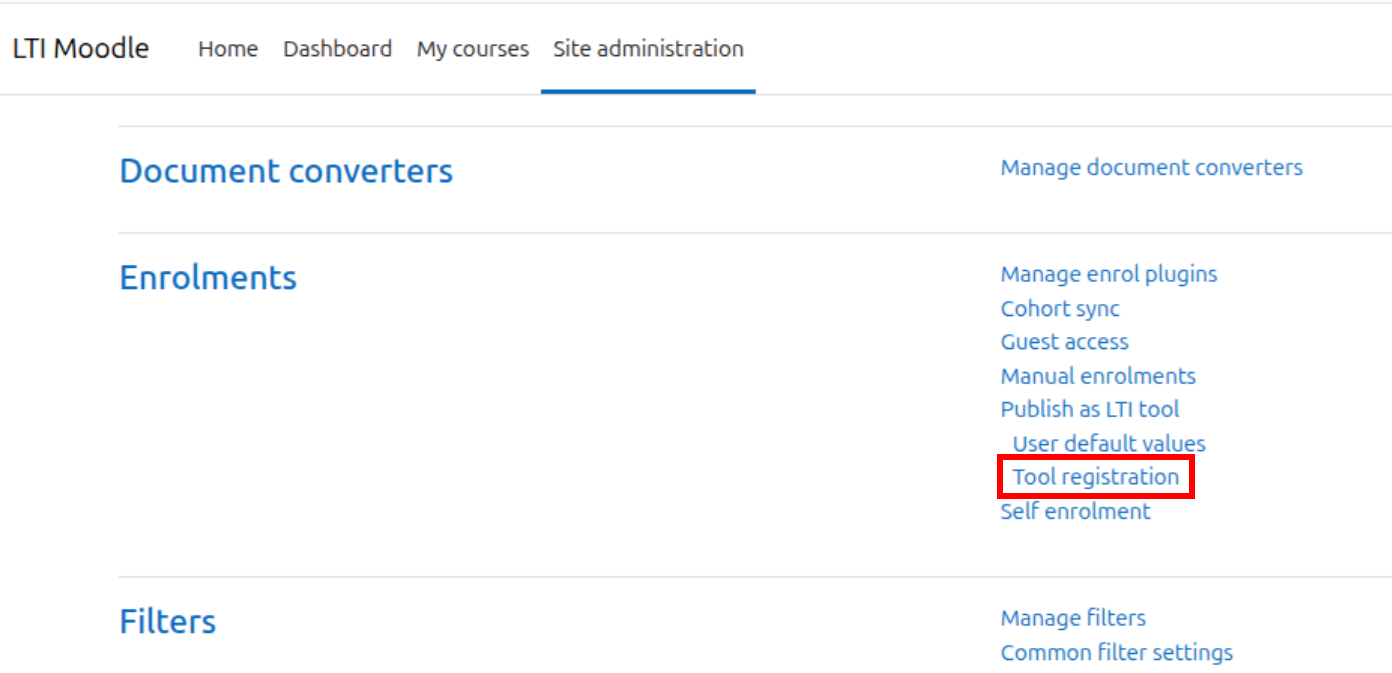
- 2. Click on “Register a platform”

- 3. Write a name and click on “Continue”

- 4. Now, you have the required information in order to create a consumer in ILIAS

ILIAS
- 5. Click on “Add New Object” and select Content > LTI Consumer


- 6. Open the “Create Own Provider Settings” accordion
- 7. Write a title for this LTI Consumer Repository Object
- 8. Select LTI Version 1.3 and full fill this with the information that you got from Moodle
- ILIAS Login URL = Moodle Tool URL
- ILIAS Initiate Login URL = Moodle Initiate login URL
- ILIAS Redirection URI = Moodle Tool URL
- ILIAS Public Key Type = Moodle JWKS URL

- 9. Now, we need the custom parameters of the course that we want to consume, for that reason, we have to come back to Moodle.
Moodle
- 10. Access to the course that you want to share

- 11. Click on: More > Published as LTI tools

- 12. Inside “LTI Advantage” tab, click on “Add”

- 13. Inside “LTI Advantage” tab, click on “Add”
- 14. Click on “Add method”

- 15. You should see the provider ready to be used and you can take the Customproperties from here

ILIAS
- 16. Paste the Custom properties in ILIAS in the configuration of the ILIAS LTI ConsumerRepository Object

- 17. Click on “Add Own Provider (not for all Users)”
- 18. Now, you can see the required parameters of ILIAS consumer which must be registeron Moodle

- 19. You must to copy them and come back to Moodle
Moodle
- 20. Go again to Site administration > Plugins > Enrolments > Tool registration and clickon view platform details

Old version

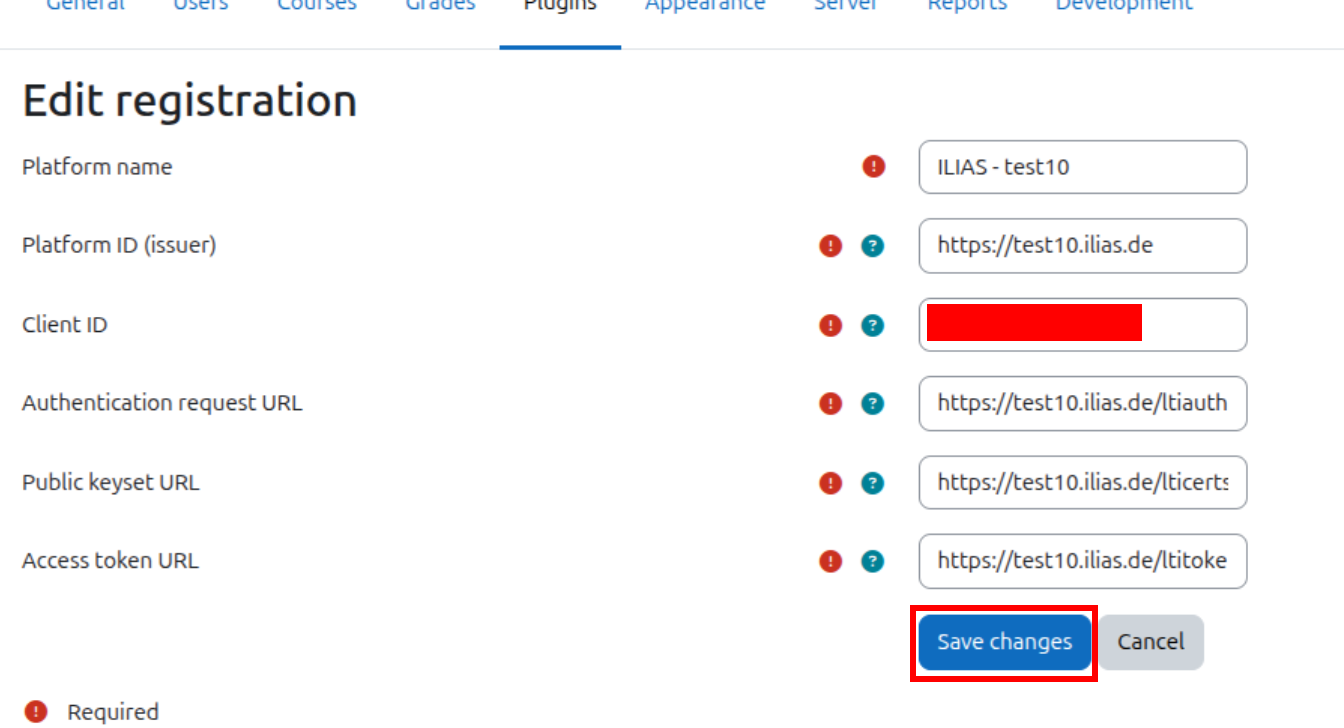
- 21. Click on “Edit platform details” and paste the information from ILIAS and save it. Becareful, because the order is different in ILIAS and Moodle, in addition, you shouldwrite the deployment number in another tab
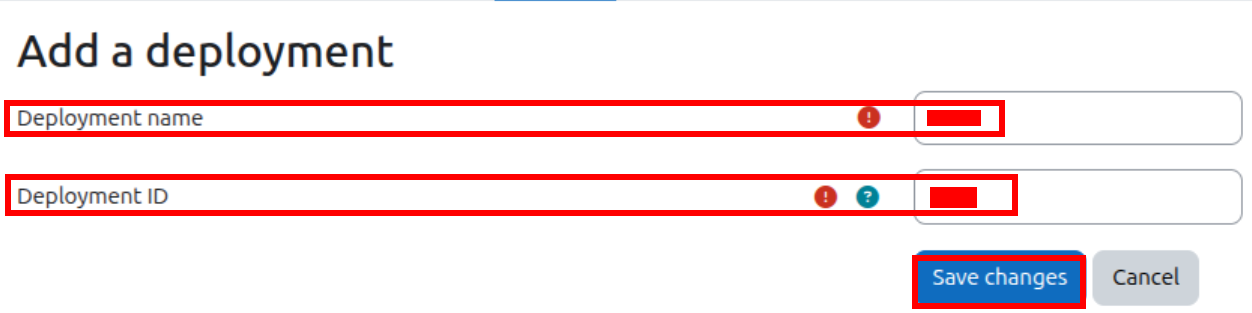
- 22. Access to "Deployments" tab and click on “Add deployment"

- 23. Now, you can add the deployment value. Moodle force you to write two values, werecommend writing the same value in both fields.
- 24. Now we are going to come back to ILIAS in order to finish the configuration and testthe connection
ILIAS
- 25. Go to your LTI Consumer Repository Object > object setting and set it online

- 26. Go to Content tab and click on “Show Content”

- 27. Then, you should see the original resource

2 Status
- Effective from release: ILIAS 10.3
- Implementation of guideline: Santiago, Sergio [sergiosantiago02]
3 License

Further use as Open Educational Resources (OER) is expressly permitted. This work and its components — unless otherwise indicated — are licensed under CC BY-SA 4.0. Attribution in accordance with the TULLU rule shall be provided as follows: “LTI connection between ILIAS and Moodle’, Sergio Santiago Sánchez (SURLABS), licensed under CC BY-SA 4.0.”
Last edited: 19. Feb 2026, 13:37, Santiago, Sergio [sergiosantiago02]