





Feature Wiki
Tabs
How to connect ILIAS and Moodle by LTI 1.3 (ILIAS provider - Moodle consumer)
1 Guideline
In many institutions, multiple Learning Management Systems (LMS) coexist to meet different pedagogical, organizational, or technical requirements. In such scenarios, enabling interoperability between platforms becomes essential to avoid content duplication, fragmented user experiences, and increased administrative workload. This guide explains how to connect ILIAS and Moodle using LTI 1.3, with ILIAS acting as the Tool Provider and Moodle acting as the Tool Consumer (Platform).
Learning Tools Interoperability (LTI) is an open standard developed by the 1EdTech Consortium that enables secure and standardized integration between learning platforms. LTI 1.3 represents the modern evolution of the standard, introducing enhanced security through OAuth 2.0 and OpenID Connect, improved data exchange mechanisms, and advanced services such as grade return and role provisioning.
This configuration is particularly useful when ILIAS is used for specialized content, assessments, or institutional repositories, while Moodle serves as the primary course management platform.
The following sections provide a step-by-step explanation of the required configuration on both systems, including registration details, key exchange, security settings, and verification procedures necessary to establish a fully functional LTI 1.3 integration.
ILIAS
- 1. Access to the resource that you want to share, we are going to use a courseavailable in test10.ilias.de: https://test10.ilias.de/go/crs/119210
- 2. Access to the configuration of than resource and them to LTI Releases:

- 3. Activate a supplier and assign the roles. We should select LTI 1.3

- 4. Click on save
Moodle
- 5. Access to Side administration > Plugins > External tool > Manage tool

- 6. Click on “Configure a tool manually”

- 7. We should assign a name in order to identify this consumer, select LTI1.3 and copythe URLs as it is indicated in ILIAS

- 8. Modify the privacy settings in order to share the following information

- 9. Click on “Save changes”
- 10. Now, you should see the new consumer in the list. The next step is to copy theparameters of this consumer into ILIAS. In order to get the parameters you shouldclick on the button “View configuration details”
In new versions of Moodle

In old versions of Moodle
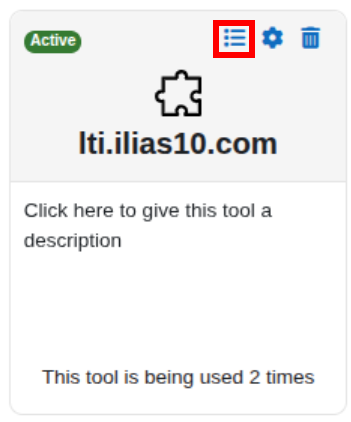

ILIAS
- 11. Copy in ILIAS the parameters from Moodle

- 12. Click on “Save”
Moodle
- 13. Access to the course in Moodle where you want to include the LTI resource:
- My courses > Course X

- 14. Within the course, you should access to: More > LTI External tools and activate the consumer which you just created


- 15. Come back to the list of elements that belongs to the course, activate the “Edit mode”and click on “Add content”

New versions

Old versions

- 16. In the list of available elements, you should be able to see the new consumer
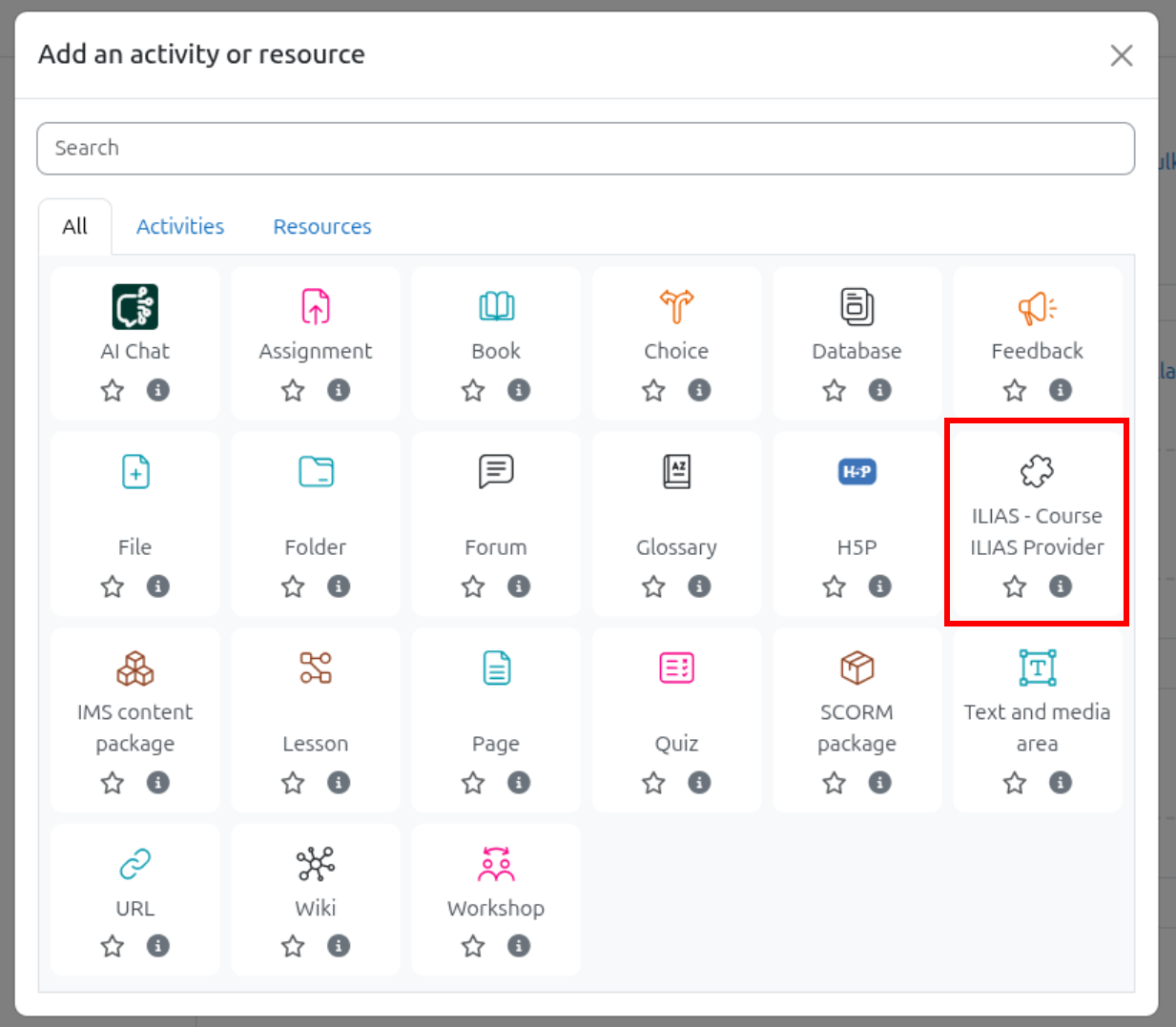
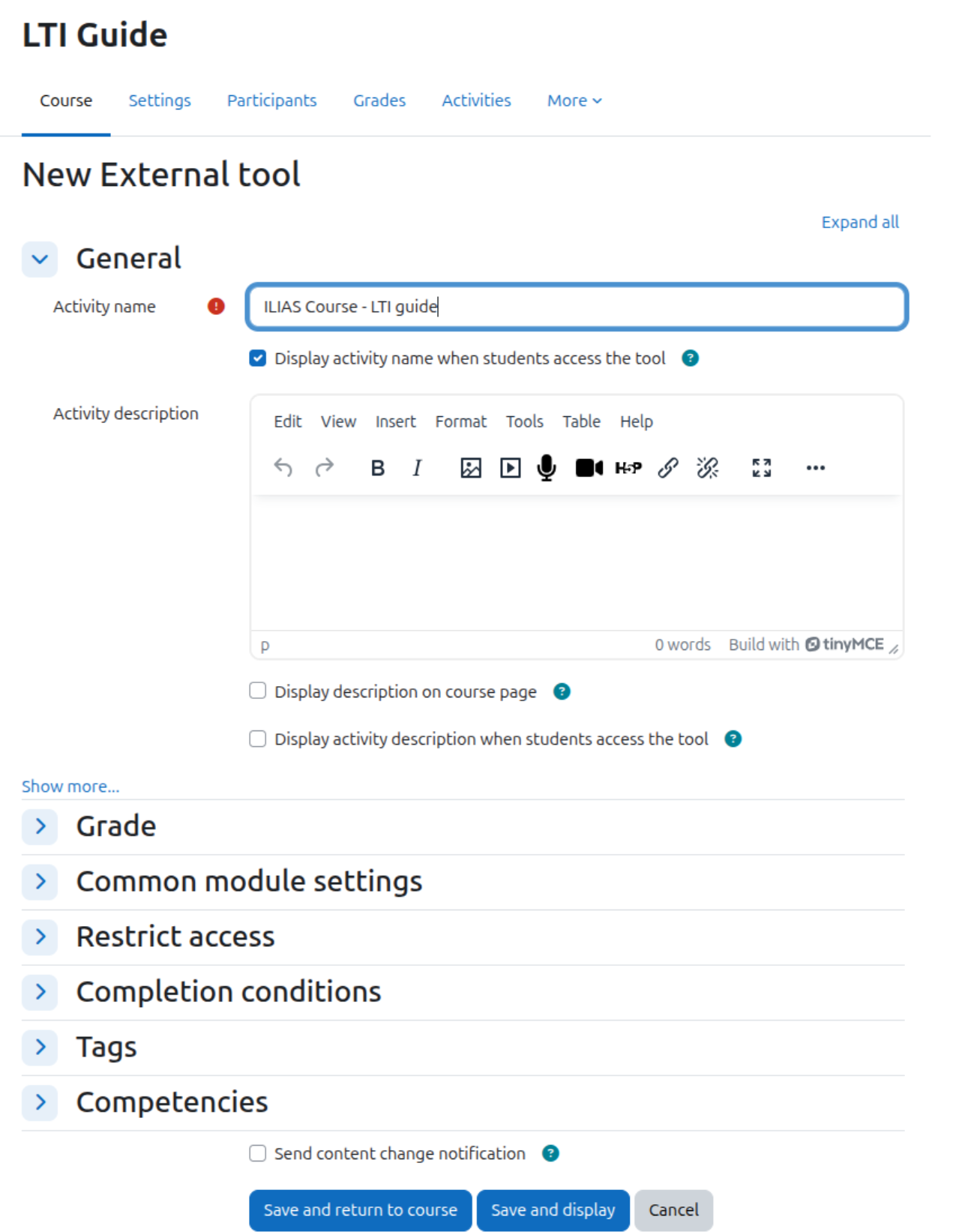
- 17. Assign a name to that resource and click on “Save and display”
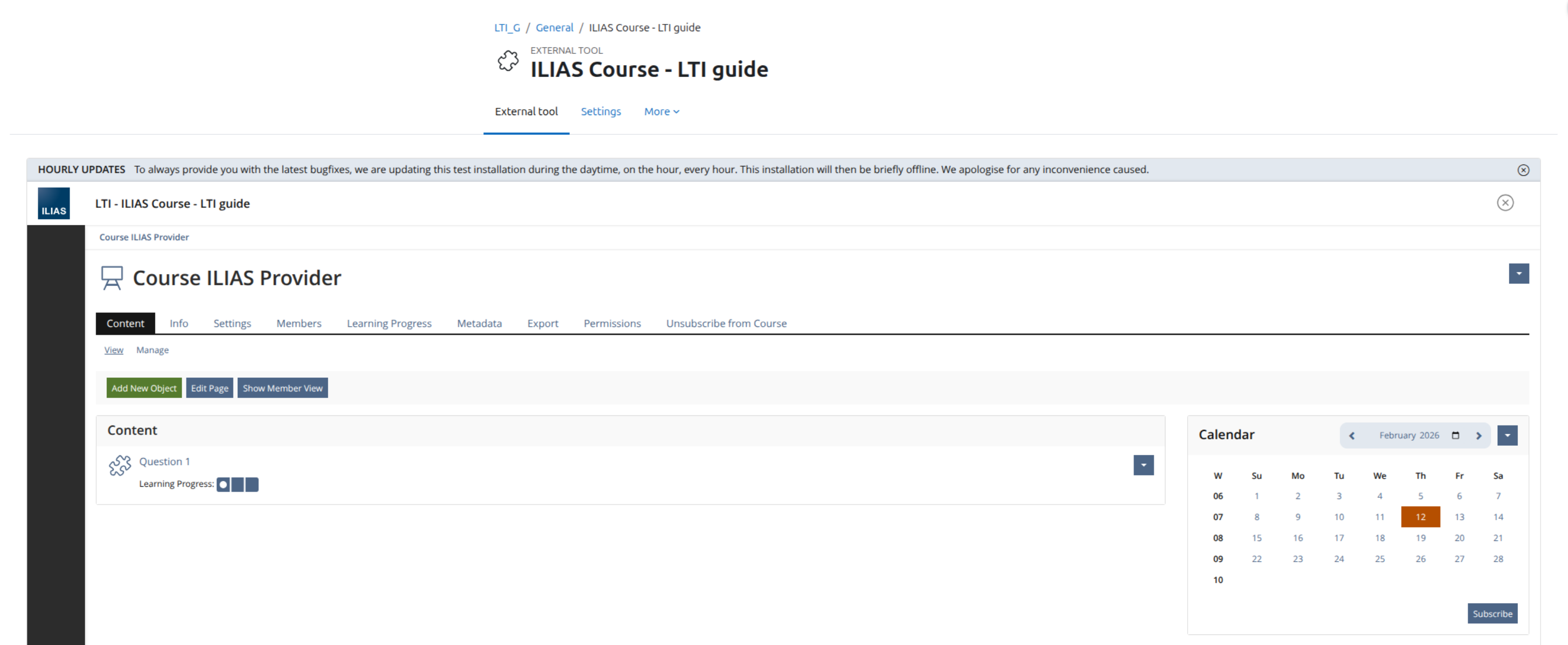
- 18. Now, you should be able to see the ILIAS course from Moodle
2 Status
- Effective from release: ILIAS 10.3
- Implementation of guideline: Santiago, Sergio [sergiosantiago02]
3 License

Further use as Open Educational Resources (OER) is expressly permitted. This work and its components — unless otherwise indicated — are licensed under CC BY-SA 4.0. Attribution in accordance with the TULLU rule shall be provided as follows: “LTI connection between ILIAS and Moodle’, Sergio Santiago Sánchez (SURLABS), licensed under CC BY-SA 4.0.”
Last edited: 19. Feb 2026, 13:37, Santiago, Sergio [sergiosantiago02]